New Existing Item
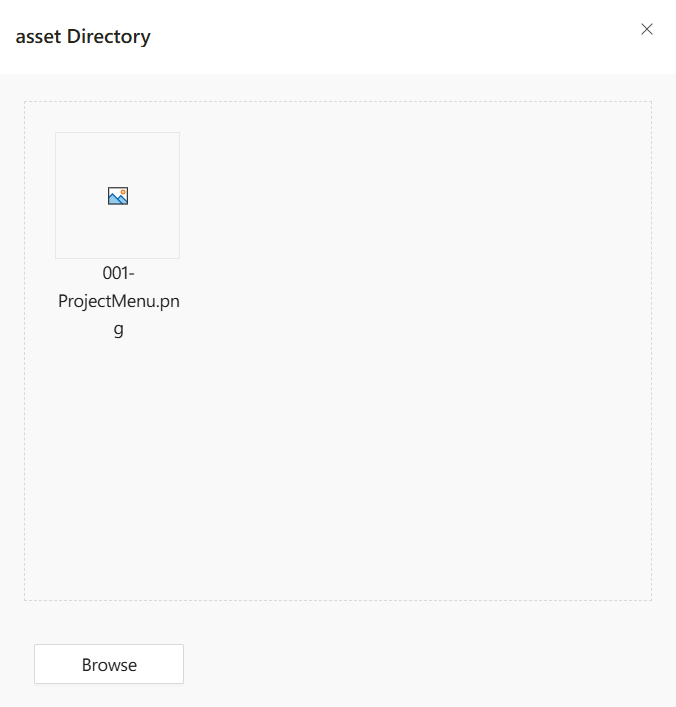
When you select New Existing Item from the right-click context menu on the asset folder, a file import dialog appears. This dialog enables you to upload and view external files within your project directory.
The feature is commonly used to bring in assets that were created or prepared outside of the Synergy IDE, such as:
- Image files used in forms or documentation
- Pre-written configuration or script files
- Reference materials or UI templates
Steps to Import an Existing File:
- Right-click the asset folder in Solution Explorer.
- Select New Existing Item from the menu.
- Use the Browse button to open your computer’s file explorer.
- Select a file (e.g.,
.png,.json,.js,.svg) and click Open. - The file will be uploaded and displayed in the asset directory.
If you click on the added file and right-click, you can delete it using the Delete button.